Sulekha · Compare
What changed since last time
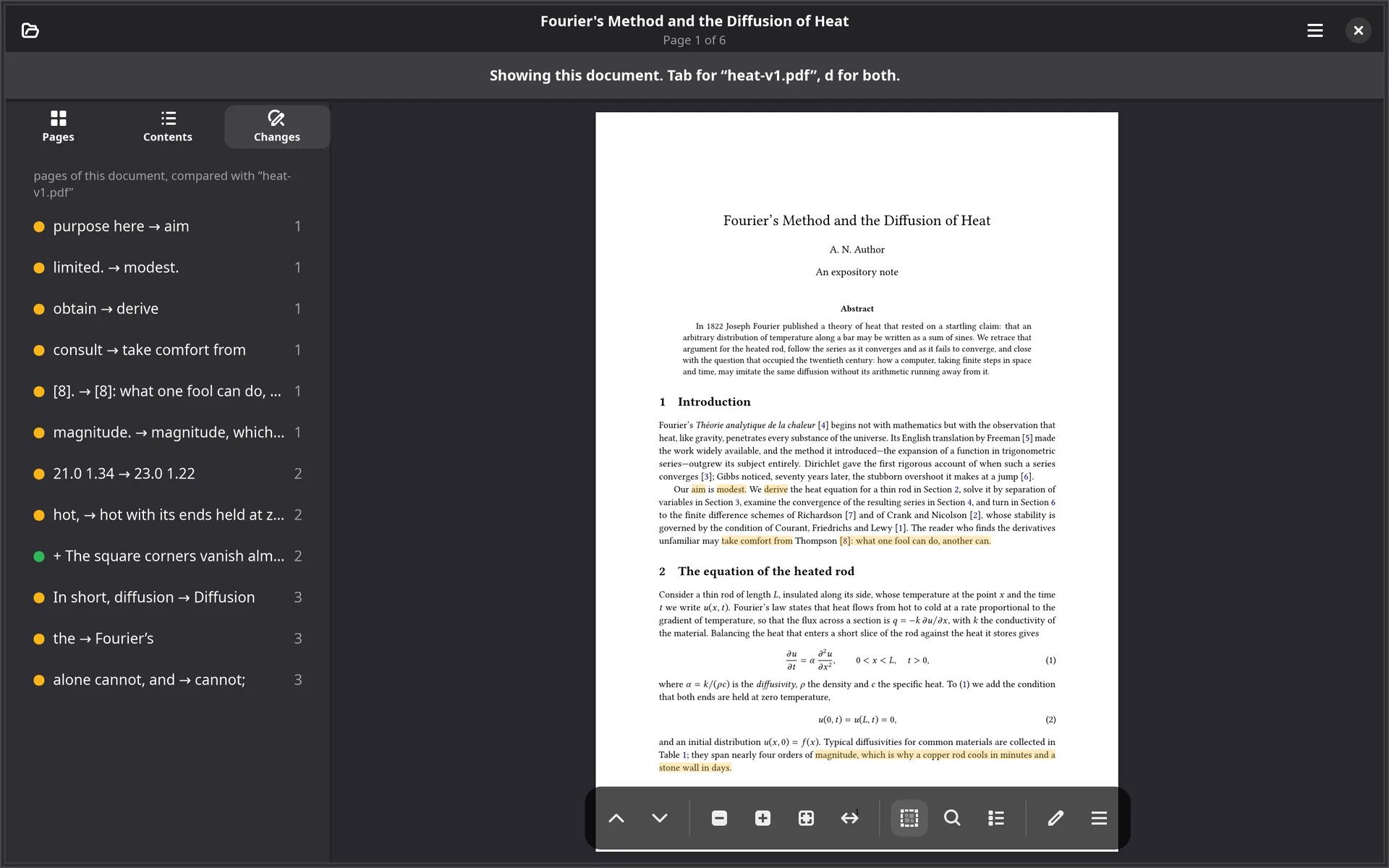
A deck is rebuilt from last year’s, a paper comes back from a co-author, and “what did I actually change” has no answer but reading both. File ▸ Compare with… takes the other PDF and marks the difference on the one you are reading.
The list says what the page cannot
The marks alone cannot tell you what a passage used to say, because those words are in the other document, and a deletion leaves only a gap. So the sidebar grows a Changes tab with every difference, the page it is on, and a dot in the colour of its mark. Click one to go there.
- n and N step through the changes, moving the page and the list together.
- Tab flips between the two documents in place. Alternating the same page between its two readings makes the changed words announce themselves.
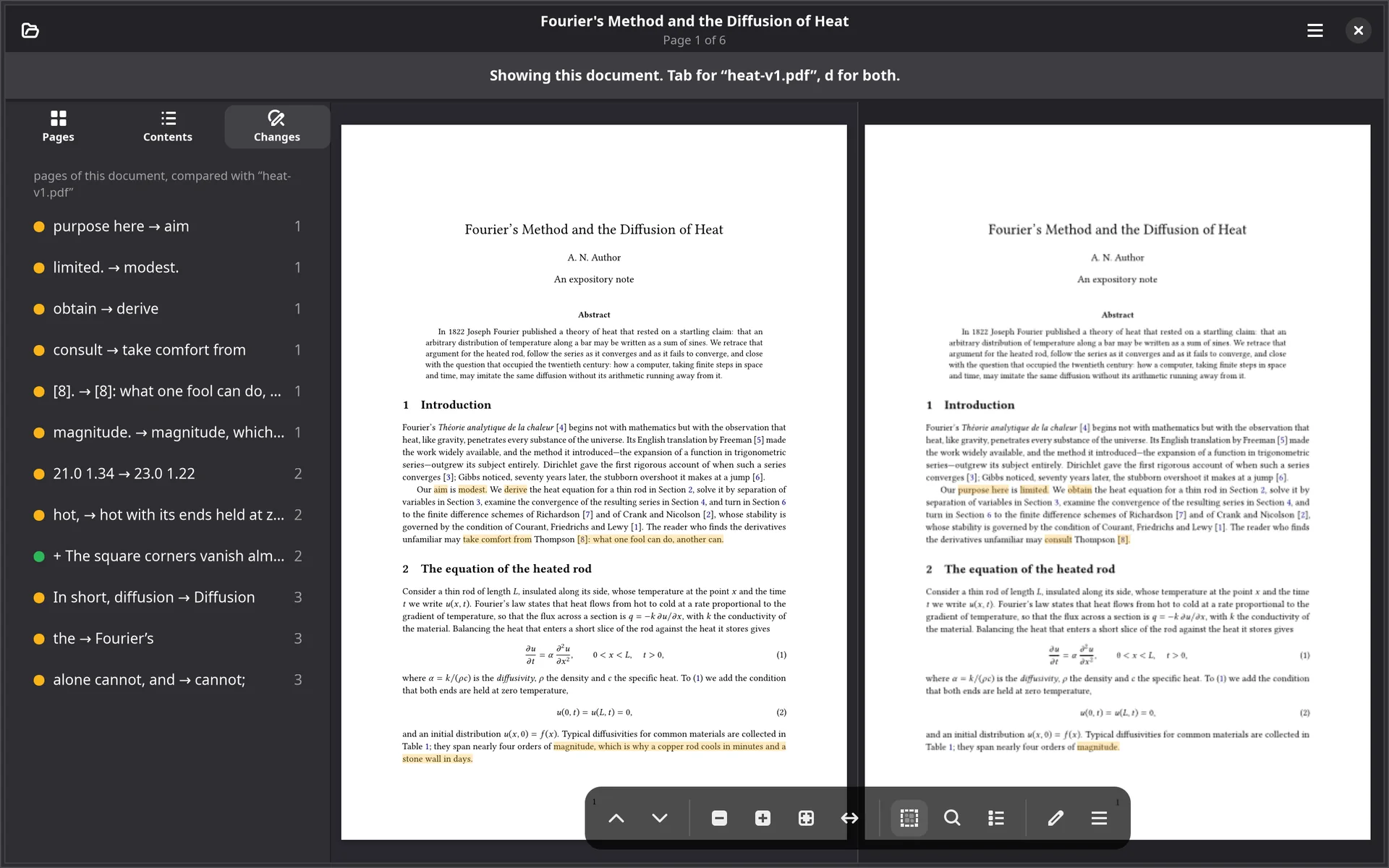
- d opens the other document’s page beside this one, for the changes a flip is bad at: a passage inserted, a slide dropped.
Words, not pixels
Sulekha compares the text of the two documents, so text that has merely reflowed is not a change, and neither is a figure that moved. Asking again puts the comparison away.
On a slide dense with mathematics, a displayed fraction can still read in a slightly different order in the two documents, which shows as a few rows that are not edits you made.
# open the new revision, marked against the old
sulekha --diff lec12_lastweek.pdf lec12.pdf
Compare comes with a licence. It draws no ink and changes no file.