Sulekha · Recording
Record the lecture. Publish the video.
Your voice, the slide changes and every stroke of ink, each stroke with its own timing, so a line replays as it was drawn rather than appearing whole. Watch it back in place, or export it to a video with a chapter per slide.
sulekha --export with no window open: slide changes, ink drawn stroke by
stroke, the animation and the embedded clip, a blank to black. The audio track has been
removed for this page.A recording you can read without Sulekha
Record a Talk… (Ctrl+Shift+T) asks which microphone, then starts presenting and recording together. The talk lands in a directory beside the deck: a plain-text timeline and a WAV file. Either is useful on its own; the audio plays in anything and the timeline opens in an editor.
- Written as the talk happens. A laptop that dies at minute fifty leaves fifty minutes behind.
- No encoder in the audio path, because an encoder is one more thing to fail an hour into a lecture.
- A red
● Recordingon the presenter view, and a warning if no sound is arriving: a muted microphone is the failure otherwise found afterwards. - r steps out of the recording for a question break, and back in.
lecture.pdf
lecture.notes.md
lecture-20261102-1000.talk/
    talk.txt        the timeline, plain text
    audio.wav       the voice
lecture-20261102-1000.mp4            after export
lecture-20261102-1000.chapters.txt   for a description box
sulekha-talk 1
deck lecture.pdf
audio audio.wav
0      slide 1
6000   slide 2
11000  slide 4
17000  slide 7
19500  ink 7 pen ballpoint 2.5 e02020ff | 86.3,23.8,0.31,0 86.9,23.9,0.41,4 …
Watch it back, slide by slide
Watch a Talk…, or sulekha --replay lecture.pdf, plays one in
place: the slide as the room saw it, the ink appearing under the pen, the voice, and a
transport along the bottom. There is no presenter view, because watching a lecture is not
giving one.
- The sound is the clock, so an hour in, a stroke still lands on the sentence that explains it.
- Slides are marks on the timeline, and Page Up and Page Down jump between them: a talk is remembered as “the bit about stability”, which is a slide.
- Animations and video replay too, driven from the recording, so scrubbing back shows the frame the audience was looking at.
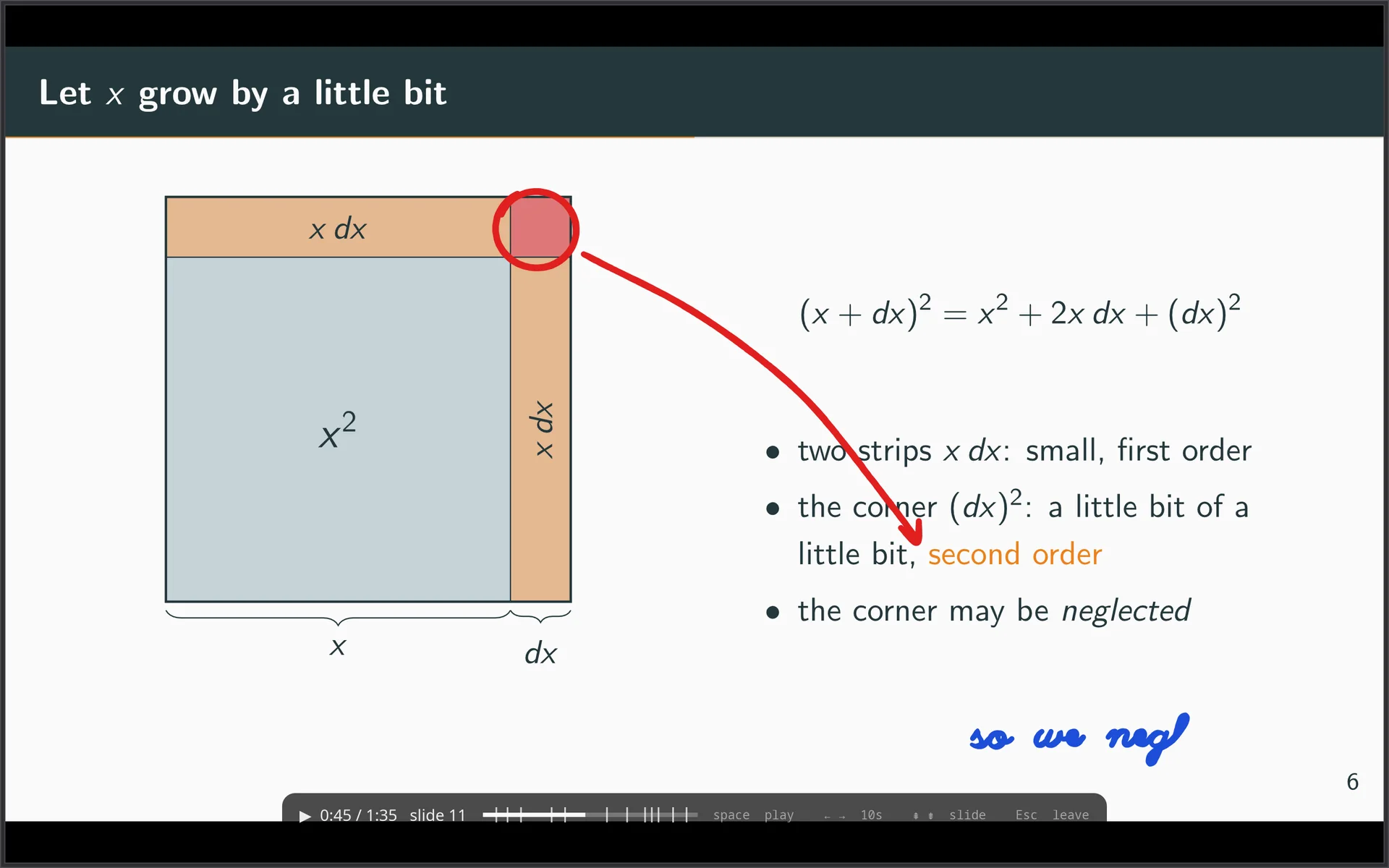
Export to video, with a chapter per slide
Export a Talk… writes one H.264 file beside the recording, 1920 pixels wide by default with the height following the deck: 1920 × 1080 for 16:9, 1920 × 1440 for 4:3. Ten minutes of talk takes about twenty seconds to encode; an hour, about two minutes.
- Chapter marks in the video, one per slide, named after the deck’s table of contents where a section begins.
- A
.chapters.txtbeside it in the form YouTube reads from a description box, so uploading is a copy and a paste. - Scriptable: record, export and upload from a shell script with no window ever opening.
- Only the export needs ffmpeg. Recording and replay work without it.
# present and record together
sulekha --record lecture.pdf

# watch the newest recording back
sulekha --replay lecture.pdf

# export it to video and quit, no window
sulekha --export lecture.pdf
sulekha --export-width 2560 lecture.pdf
# lecture-20261102-1000.chapters.txt
0:00 Slide 1
0:06 Slide 2
0:11 Slide 4
0:17 Slide 7
0:30 Slide 9
0:36 Slide 11
0:55 Slide 12
1:04 Slide 13
1:12 Slide 14
…
Recording, replaying and exporting talks come with a licence.